

To make a YouTube thumbnail from a video title in Lunzo, choose the YouTube Thumbnail format, enter your title, answer the creative-direction questions, then inspect and download the result. Check the saved image beside your title at a small viewing size before using it.
We tested that process in Lunzo with a fictional video title:
I Lived on $10 a Day in Tokyo for a Week
We recorded this example on November 13, 2026. The video premise, generated traveller and Tokyo scene are fictional. The run gives us something specific to review: the picture, its wording, a correction we tried and the original file we checked in a feed preview.
Enter your title in Generate
Sign in to Lunzo and open Generate. For this run, we used the YouTube Thumbnail format, Title mode, Nano Banana 2.1 and the 1K quality setting. We did not add a face model, reference image or brand kit during the run.
The Generate control showed 8 credits before submission. That is the displayed cost for these choices during this run, not a fixed price for every model or setting. Check the control again whenever you change them.
Give the creative-direction questions enough context
The app presented three steps. The first asked:
Which angle best captures the focus of your Tokyo survival challenge?
The suggestions included a difficult budget struggle, a convenience-store budget hack and a contrast with expensive Tokyo streets. We used Custom answer to specify a food-and-local-transport budget, excluding flights and accommodation, and described a surprised traveller holding $10 beside a ramen stall on a rainy street.
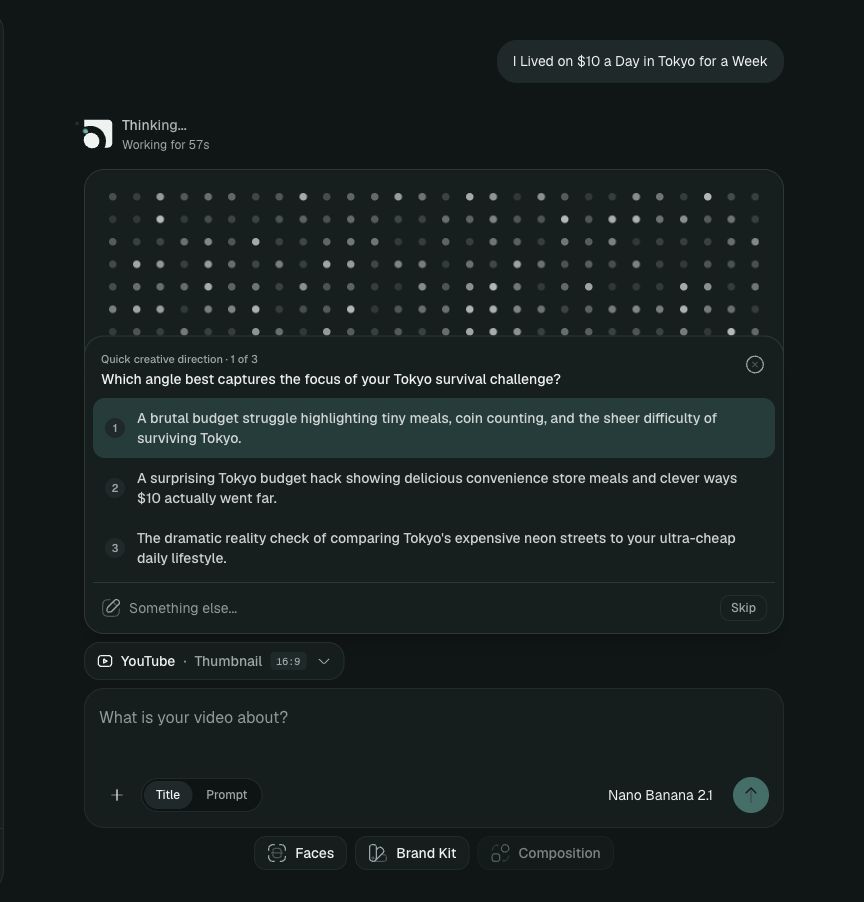
The second question asked whether the traveller had actually survived the week on $10 a day. We clarified that this was a fictional demonstration. That distinction matters: a suggestion can sound plausible without being true of your video.
The final step asked which thumbnail text hook to feature. We entered:
$10 A DAY IN TOKYO
The image wording gives the budget and location. The full video title adds the week-long constraint. You do not need to fit the whole title onto the picture.
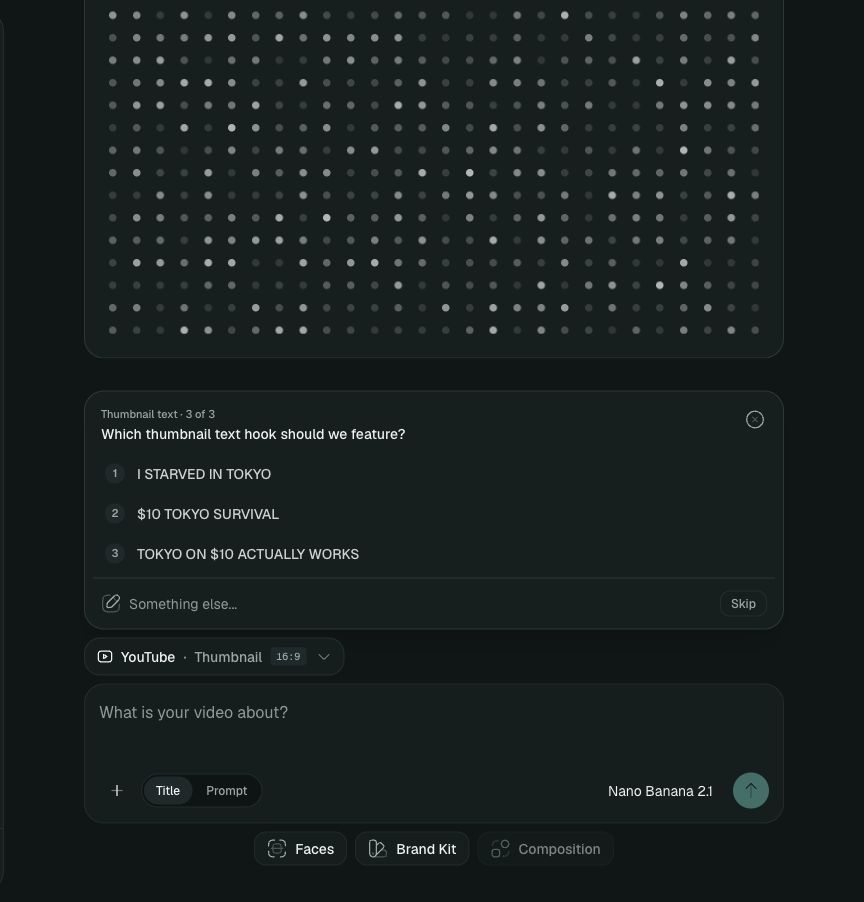
These questions and suggestions came from this run. Another title can produce a different sequence, so answer for the video you are making rather than trying to reproduce these screens word for word.
Read the first result closely
The first result put the large budget wording on the left, a traveller near the centre and a ramen stall on the right. The main line read “$10 A DAY IN TOKYO”.
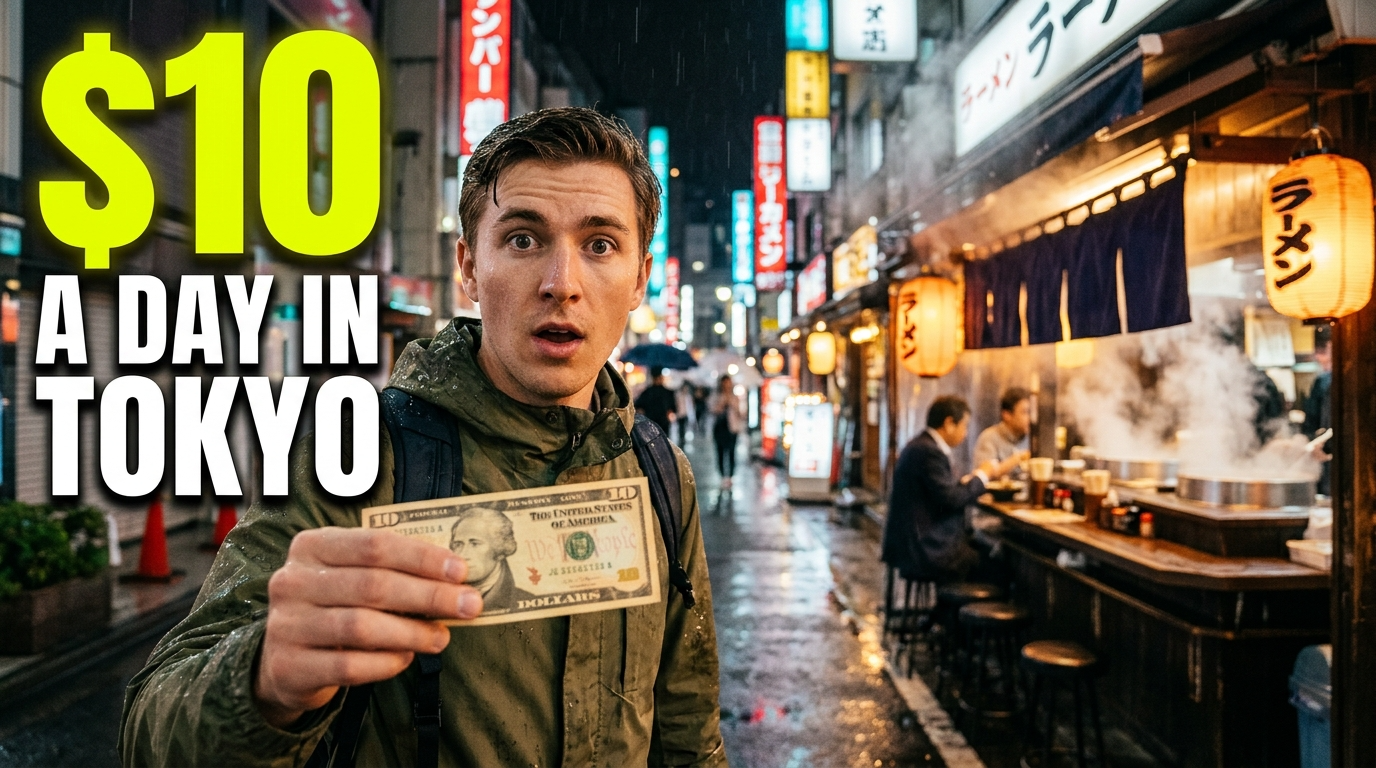
The main text was readable, but the small printing on the illustrated banknote was garbled. That is the kind of detail worth checking at full size. A clear headline does not mean every object in an AI-generated image is accurate.
Check the picture against the video's premise too. A Tokyo street and a dollar amount do not prove where someone travelled, what they spent or whether a challenge succeeded. Your title and image still need to represent the actual video honestly.
Try one specific correction
We opened Edit, which brought the image into Canvas. Its “Describe your edit” control offered a remix as a new version for 8 credits.
We asked it to replace the banknote with a simple paper voucher reading “$10”, without the other printed text or currency portrait, while keeping the traveller, headline and setting. This addressed the garbled small printing rather than asking the app to “make it better”.
Canvas created a second version, v2, alongside v1. In the captured workspace view, the result used a simpler “$10” voucher. The original remained available for comparison. A remix creates a new AI-rendered version, so compare other details too. We did not edit the generated headline as a separate text layer.
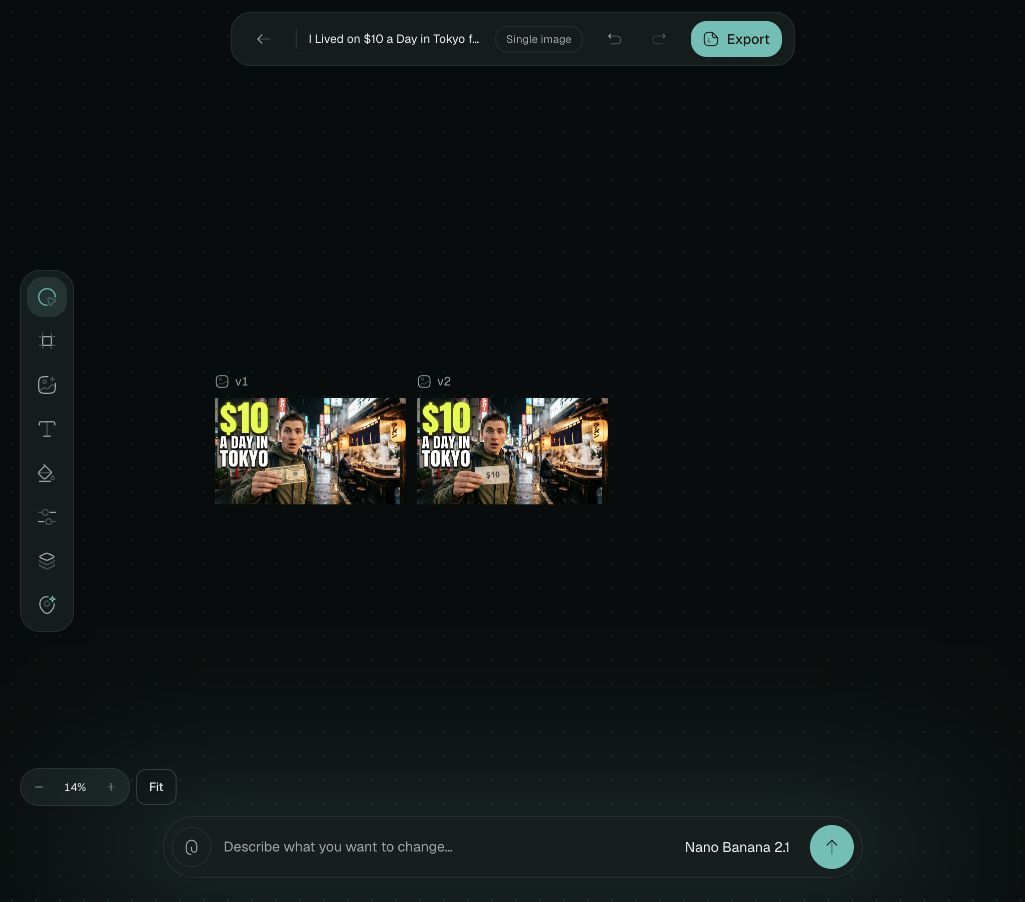
The displayed costs were 8 credits for the initial generation and 8 for this remix, a total of 16 displayed credits. Another attempt can cost more, so review each result before requesting the next one.
Open the exported file and check it in context
The saved original output, v1, was PNG, 1376×768 pixels and 2,278,686 bytes, about 2.28 MB. The app's “1K” quality label did not mean that the saved file was exactly 1024 pixels wide.
That file exceeds YouTube's current 2 MB limit for a video thumbnail uploaded from mobile. For a phone upload, compress a copy and check its text again. YouTube lists a 50 MB desktop limit. Check the official upload guidance for your device.
We opened that exact first-output PNG in the thumbnail preview, entered the same title and checked Mobile and Search. The preview recognized the file as 1376×768. The subject and large wording were visible together with the video title; the tiny banknote printing was much less noticeable at feed size, which is why the full-size check still mattered.
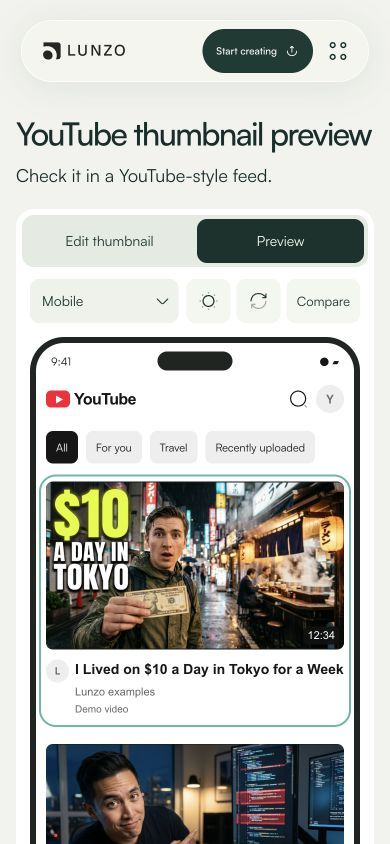
A feed preview checks appearance. It does not certify dimensions, file limits or audience response. Use the YouTube thumbnail size guide to check requirements for your upload device, then open the saved original to confirm you are uploading the version you intended. This run did not include a YouTube upload or an audience test.
Try it with a title you plan to publish
Start with one real video title in the Lunzo thumbnail maker. Give the direction questions facts about your video, choose a short line of image text and inspect both the main subject and small details. If you need another version, describe the specific change and check its cost first.
Keep the input, chosen answers, original output and final saved file together. They let you compare what you asked for with what you actually got.