.webp) 9:07
The Reality of Being a Software Engineer
Behind the Code
Demo video

Check your image and title in a YouTube-style feed before you upload.Check it in a YouTube-style feed.
Free to use. No account needed.
JPG, PNG or WebP, up to 50 MB.
Your images stay in this browser. This tool does not upload them.
9:07The Reality of Being a Software Engineer
Behind the Code
Demo video
12:34I Lived on $10 a Day in Tokyo for a Week
Lunzo examples
Demo video
 18:42
The Entire History of the British Empire
History in Focus
Demo video
 22:10
Surviving 30 Days in the Sky
Above the Clouds
Demo video
 14:55
The Truth About Making Money Online
Creator Notebook
Demo video
 26:03
A 20-Minute Sunday Reset
A Slower Sunday
Demo video
Illustrative preview. Neighboring videos and their metadata are demos.
Lunzo example loaded. You can replace it with your own image.
A thumbnail can be easy to read in an editor and harder to understand beside other videos. Put your image in the preview with the title you plan to publish. Check what remains clear when the image gets smaller, the title wraps and the duration badge sits over the corner.
Start with the part you most want a viewer to notice. It might be a person or a finished project. Then check the words around it. YouTube's own guidance recommends readable text, simple compositions and accurate, succinct titles.
Upload the thumbnail from your device, or try an existing Lunzo example. Enter the full video title so you can review the picture and wording together. Enter the channel name and duration in the editor.
Switch between Home, Search, Up next and Mobile. Try the light and dark preview themes. Use Shuffle position to move your video among the same demo videos and inspect it in a different spot.
Add another image for the same video. Keep the title and context unchanged while you compare the images. When you've found something to revise, make the change in your editor and replace the image here.
The Home preview places your thumbnail in a grid with other examples. Look for the subject first, then read the words on the image and the title beneath it. If you have to enlarge the preview to explain the idea, try simplifying the composition.
Shuffle changes the position of your video. The surrounding examples are demo material, so this is a way to inspect the layout rather than research your actual competitors.
The Search preview puts an image beside its title and channel details. Read the visible part of the title before looking at the full input. Does it still explain the video? A useful word buried at the end can disappear when the title is shortened.
YouTube recommends putting important words near the beginning of a succinct, accurate title. The amount displayed depends on the layout; this preview does not establish one universal character cutoff.
Up next gives the image less room beside a watching layout. Inspect the main subject at that smaller scale. Decorative background details can disappear even when they look clear in the original file.
Read the compact title too. A thumbnail and title should still describe the same video when you see less of each.
The Mobile preview gives you a narrow feed with the image, title and channel details together. Check the subject without zooming in. Then read the title as it wraps below the image and inspect the duration badge.
The preview is an illustration of a viewing context. YouTube changes its interface, and screens have different widths. Use it to find things to inspect on your own device, rather than as an exact screenshot of every viewer's feed.
These existing Lunzo examples show different checks you can make before uploading. They are generated demonstration images, not published-video performance results.

In the Tokyo example, the budget is the largest part of the wording. The person and the $10 bill sit to its right. View it at feed size and read “$10 A DAY IN TOKYO” from beginning to end.
Look for a specific failure rather than a vague impression. Does a word run into the background? Does a thin part of a letter disappear? Does the wording cover something the viewer needs to understand? Write down that problem before making another version.
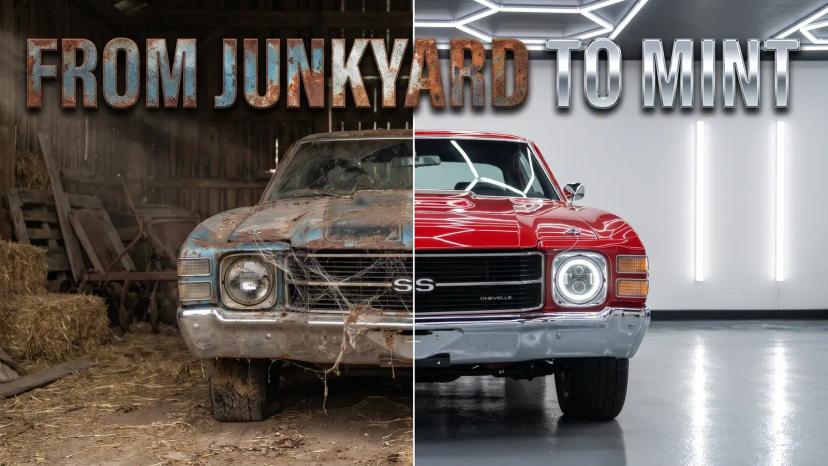
We Restored a Rusted 1970s Car in 72 Hours
The car example shows a rusty vehicle beside its restored version. The image carries the transformation. Its title, “We Restored a Rusted 1970s Car in 72 Hours,” adds the time constraint.
Read your own title and image the same way. Decide what the image explains and what the title contributes. Repeating a phrase can be a deliberate choice, but every repeated word takes space that could explain something else.
 26:03
The island example puts its main wording at the upper left. In the simulated feed, the duration appears over the lower-right corner.
Inspect that corner with the badge visible. A small logo, word or object can be covered there. Check the actual composition instead of relying on a fixed safe-zone measurement.
Two images side by side can help you spot a larger subject, clearer wording or a better use of space. Keep the title, neighboring examples and preview scale the same while you inspect them. Changing several things at once makes it harder to say what you preferred.
Audience testing answers a different question. For eligible videos, YouTube's A/B testing tool can show viewers up to three title or thumbnail options and assess results using watch time. Access requirements apply, and a test can finish without a clear winner.
This preview collects no audience responses and predicts no click-through rate. Once a video is published, use its actual analytics to assess performance. YouTube notes that CTR depends on the audience and traffic source, so a small change in one number is not enough to explain what happened.
For dimensions, aspect ratio and device-specific file limits, use the YouTube thumbnail size guide. Previewing a file does not certify that it meets YouTube's upload requirements.
Have an idea for a clearer image? Start with your video title, a prompt or a visual reference in Lunzo. Bring the result back to the preview and review it with the title you plan to use.